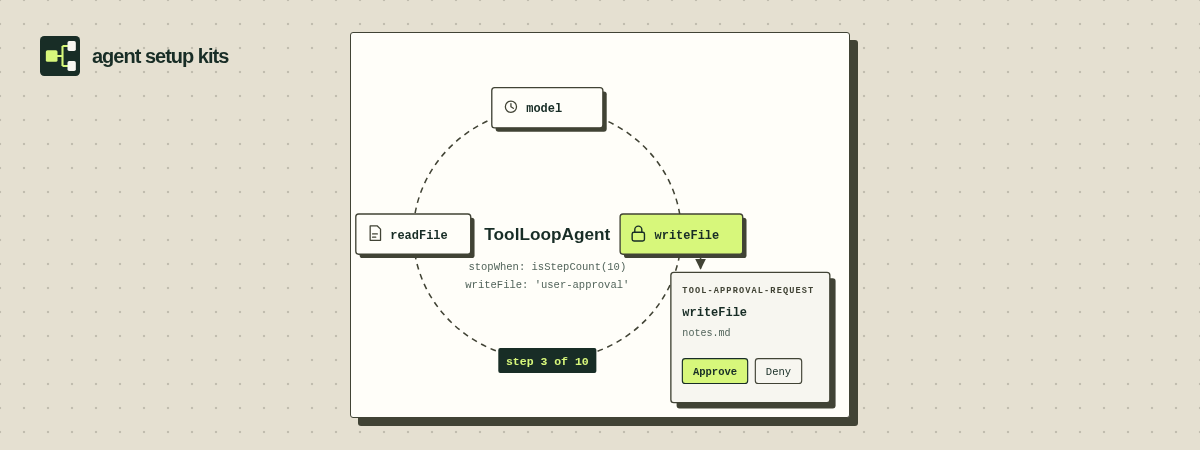
The Vercel AI SDK's ToolLoopAgent lets a model call your tools in a loop until the job is done. Give it a step limit with stopWhen, and set toolApproval so any tool that writes, sends or deletes waits for a person to say yes.
The agent reads freely and proposes changes. A person approves each write.
What the AI SDK is (checked on ai 7.0.156)
The AI SDK is Vercel's Apache-2.0 TypeScript toolkit for AI apps and agents. We used the ai package at 7.0.156, published 2026-10-28. It declares node >=22.
Based on AI SDK, by Vercel, Inc. and contributors.
Step 1: Install, pinned
npm install ai@7.0.156 zodAdd the provider package for the model you use, and keep its API key in your environment, never in code or logs.
Step 2: Define the agent with a step limit
The loop control docs say the loop keeps going until the model stops calling tools, a tool has no execute function, a tool call needs approval, or a stop condition is met. ToolLoopAgent stops after 20 steps by default, using isStepCount(20). The docs recommend setting stopWhen yourself, and they warn that isLoopFinished() removes the limit entirely.
import { ToolLoopAgent, tool, isStepCount } from 'ai'
import { z } from 'zod'

export const agent = new ToolLoopAgent({
  model: 'your-provider/your-model',
  instructions:
    'Help edit project notes. When a tool execution is not approved, do not retry it.',
  tools: {
    readFile: tool({
      inputSchema: z.object({ path: z.string() }),
      execute: async ({ path }) => readNote(path),
    }),
    writeFile: tool({
      inputSchema: z.object({ path: z.string(), text: z.string() }),
      execute: async ({ path, text }) => writeNote(path, text),
    }),
  },
  toolApproval: { writeFile: 'user-approval' },
  stopWhen: isStepCount(10),
})
readNote and writeNote stand in for your own functions. The "do not retry" line comes from the tool approval docs, which suggest it to stop the model asking for the same denied action again.
Pick a limit that fits the task. With a mock model that kept calling readFile, isStepCount(3) ended the run after exactly 3 steps and 3 tool runs.
Step 3: Handle the approval
When the model calls writeFile, the agent doesn't run it. It returns a tool-approval-request and stops. Your code shows the request to a person and sends back their answer:
import type { ModelMessage, ToolApprovalResponse } from 'ai'

const messages: ModelMessage[] = [{ role: 'user', content: 'Tidy notes.md' }]
const result = await agent.generate({ messages })
messages.push(...result.responseMessages)

const answers: ToolApprovalResponse[] = []
for (const part of result.content) {
  if (part.type === 'tool-approval-request' && !part.isAutomatic) {
    const ok = await askReviewer(part)   // show the tool name and full input
    answers.push({
      type: 'tool-approval-response',
      approvalId: part.approvalId,
      approved: ok,
      reason: ok ? 'Approved by reviewer' : 'Rejected by reviewer',
    })
  }
}

messages.push({ role: 'tool', content: answers })
const next = await agent.generate({ messages })
This follows the docs pattern, with askReviewer standing in for your own approval screen. We ran it against the SDK's mock model on 7.0.156:
- The first call ended after 1 step with a
tool-calland atool-approval-request.writeFilehad not run. - Approving and calling again ran
writeFileexactly once. - Denying and calling again did not run it. Per the docs, the model gets the denial and can answer without the tool result.
Store messages between the two calls (in a database or session) so the approval can come later.
In a chat UI built with useChat, the docs show approval requests arriving as tool parts with state: 'approval-requested'. Your component shows Approve and Deny buttons and answers with addToolApprovalResponse.
Step 4: Use rules for the clear cases
toolApproval can also be a function. The docs show it returning one of four statuses: 'not-applicable' (run normally), 'approved', 'denied' (with a reason) or 'user-approval'. For example, deny a tool for users without the right role, and only ask a person when the input crosses a line you set.
Keep rules simple, and keep 'user-approval' on anything that sends, pays, deletes or publishes. The docs also note that approvals only apply to tools the SDK runs. Provider-executed tools run on the provider's side and skip this check, so don't give the agent provider tools that make changes.
What a person still owns
- Reading the exact tool input before approving, not a summary.
- Choosing the step limit and changing it when a task needs more.
- Checking the final result, since approved writes can still be wrong.
Takeaway
Pin ai@7.0.156, set stopWhen on purpose, put 'user-approval' on every tool that changes something, and save the messages so a person can answer later.
Next step: add one write tool with toolApproval set to 'user-approval', then approve one request and deny one to see both paths.
How we check the tools we list is on our verification page.
Good setups, worth keeping. Request email updates on the home page, then confirm by email. No subscription starts until you confirm. Or find an agent for the job.
Part of: Which setup should I use to add human approval to an agent?