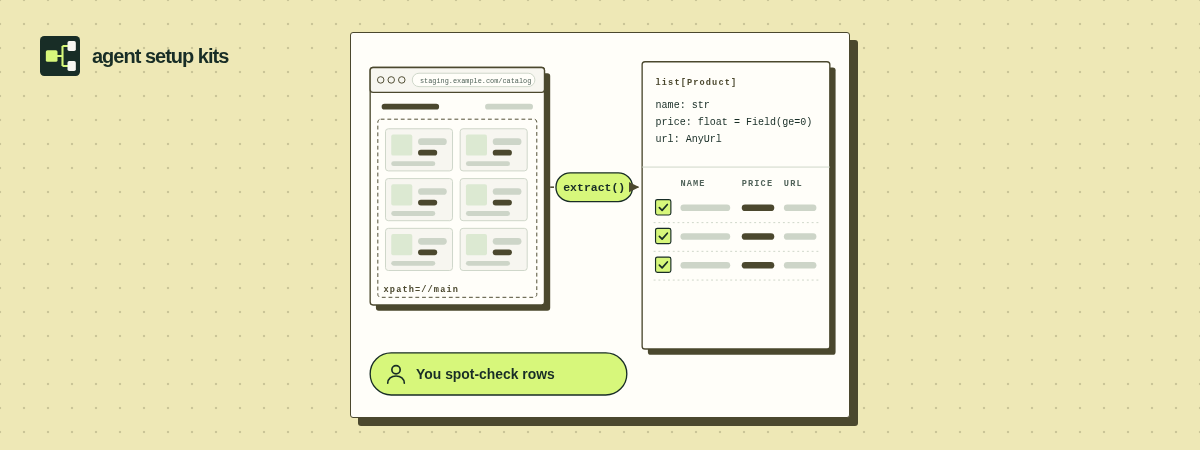
Stagehand's extract() reads a web page and returns data in the exact shape you define, such as a list of products with names, prices and links. Use it read-only first, scope it to the part of the page you need, and spot-check the results against the page before anything downstream relies on them.
A schema guarantees the shape of the answer. It doesn't guarantee the answer is right.
What Stagehand is (checked on v4.3.0)
Stagehand (GitHub) is an MIT-licensed browser automation SDK with three main AI calls:
act()performs an action described in plain language, such as "click the next page button".extract()pulls structured data from the page.observe()finds elements you could act on and returns them as suggested actions, without carrying them out.
SDKs exist for TypeScript, Python and Go. Version 4.3.0 of both the npm and Python packages was published on 2026-10-20. Browserbase, the company behind it, also runs a hosted cloud browser service. This guide runs everything on your own machine, so you only pay your model provider for the AI calls.
Based on Stagehand, by Browserbase and contributors.
Why start with extract only
act() changes things: it clicks, types and submits. extract() only reads. If your first job is "get me the data on this page", there's no reason to give the script the ability to click anything. Keep act() out of the script until you need it, and when you do, see the approval step below.
Step 1: Install
From the installation docs, the Python SDK needs Python 3.11 or later. To run locally you also need Chrome installed, because Stagehand drives the browser through the Chrome DevTools Protocol:
python3 -m venv .venv && source .venv/bin/activate
pip install stagehand==4.3.0
Pinning the version keeps your script from changing behaviour on the next release.
Stagehand doesn't read environment variables or .env files for you. You read your model key in your own code and pass it in, as below. Keep the key in your shell environment or a secrets manager, never in the script or in git.
Step 2: Define the shape and extract
The extract docs say Stagehand validates the result against your schema (Pydantic in Python) before returning it. So write the schema as strictly as the data allows:
import asyncio
import os

from pydantic import AnyUrl, BaseModel, Field
from stagehand import Stagehand, local_browser


class Product(BaseModel):
    name: str
    price: float = Field(ge=0)
    url: AnyUrl


class Products(BaseModel):
    products: list[Product]


async def main() -> None:
    browser = await local_browser.launch()
    try:
        stagehand = await Stagehand.create(
            browser=browser,
            model="openai/gpt-5.6-sol",
            model_api_key=os.environ["OPENAI_API_KEY"],
        )
        try:
            page = (await browser.context.pages())[0]
            await page.goto("https://staging.example.com/catalog")

            result = await stagehand.extract(
                "extract every product in the product grid with its name, price and link",
                Products,
                locator=page.locator("xpath=//main"),
            )
            for p in result.data.products:
                print(p.name, p.price, p.url)
        finally:
            await stagehand.close()
    finally:
        await browser.close()


asyncio.run(main())
Replace the staging address with a page you own or have permission to collect data from. The model name is the one the quickstart uses; any model Stagehand supports works.
Notes on what this does:
- The schema does real work.
price: float = Field(ge=0)rejects a price written as text or a negative number.AnyUrlrejects anything that isn't a URL. Lists go inside a field (products), as the docs show. locatorscopes the read. It limits extraction to one part of the page. The docs say this reduces what's sent to the model and improves accuracy. Scoped extraction supports CSS and XPath locators, nottext=ones.ignore_locatorscuts noise. Pass a list of locators for ads, pop-ups or "related" panels you don't want read.screenshot=Trueis optional. Turn it on only when the data is visual, such as a badge in an image. Otherwise the model reads the page's accessibility tree, not a picture of it.
Step 3: The human check before you use the data
Schema validation catches wrong types. It can't catch a real-looking wrong value, such as a price read from the wrong product card or a product the model missed. Before the data feeds anything else:
- Compare the count. Count the products on the page yourself and check the list matches.
- Spot-check rows. Open the page and compare at least a few rows field by field, including the first and last.
- Check edge cases. Sale prices, "from" prices, out-of-stock items and missing images are where mistakes show up.
- Re-check after site changes. If the page layout changes, run the spot-check again before trusting the output.
Only after a person signs off should the extracted data go into a database, a report or a customer-facing page.
When you need to click: observe, check, then act
If the job later needs clicks (paging through results, opening filters), the observe docs describe a "validate then act" pattern for safety-sensitive flows: call observe() to get candidate actions, check them in your code, then pass only the approved one to act().
That's your approval point for actions. For example, allow clicks on a "Next page" button and refuse anything labelled Buy, Submit, Delete or Send. For logins, observe() accepts variables, so the suggested actions carry %username%-style placeholders instead of real values and the secret never reaches the model.
Cloud and caching
If you later use the hosted browser, the docs say extract() and observe() results can be cached server-side, and caching is on by default there. A cached answer is fast, but it reflects the page when it was first read, so re-check results after the page changes. None of this applies to the local setup above.
Takeaway
Stagehand's extract() gives you typed data from messy pages with very little code. Pin the version, write a strict schema, scope the read, keep act() out until you need it, and have a person compare the output with the page before anyone relies on it.
Next step: run the script against one page you own, then count and spot-check the results by hand.
Good setups, worth keeping. Request email updates on the home page, then confirm by email. No subscription starts until you confirm. Or find an agent for the job.