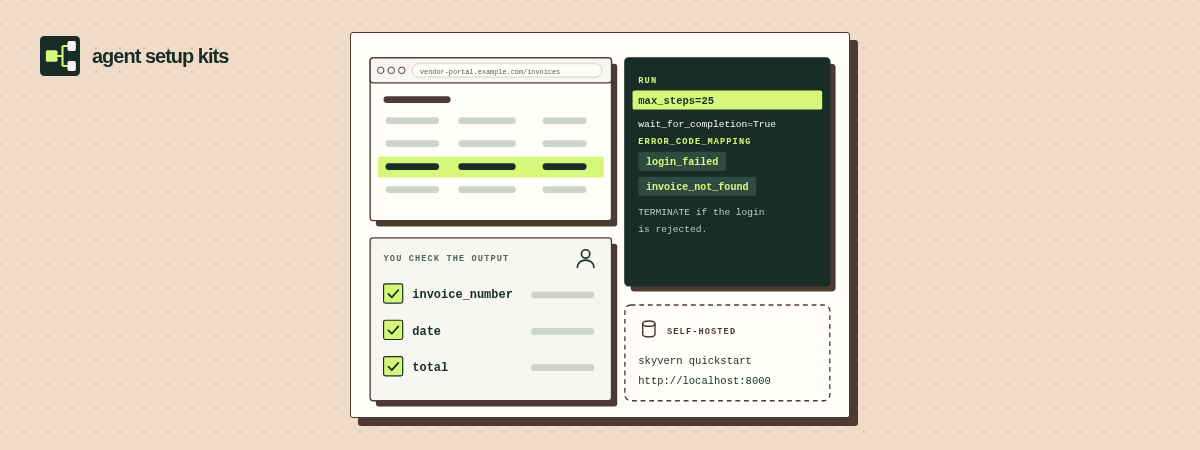
Skyvern can run a browser task you repeat every week, such as pulling the same report from a vendor portal, on your own machine. Set it up so each run has a step cap, a clear stop rule and named error codes, and so a person checks the output before anything downstream uses it.
Keep the first workflow read-only. Anything that submits, pays or sends stays with a person.
What Skyvern is (checked on v1.0.56)
Skyvern automates browser workflows using LLMs and computer vision. Its README says it relies on vision models rather than only on fixed XPath selectors, so it can work on sites whose layout changes. There's a Python SDK, a TypeScript SDK, a web UI, and a managed cloud.
Version 1.0.56 was released on 2026-10-14. The repository is licensed AGPL-3.0. The README says all core logic is in the open-source repository "with the exception of anti-bot measures available in our managed cloud offering."
Based on Skyvern, by Skyvern-AI and contributors.
A note on the licence
AGPL-3.0 is a copyleft licence. Its section 13 covers modified versions that users interact with over a network: you must offer those users the source code. Running Skyvern unmodified for your own team is a different situation from changing it and offering it to customers. This isn't legal advice. Read the licence, and ask your own adviser if you plan to modify or host it for others.
Step 1: Install the server, pinned
The self-host guide lists Python 3.11 to 3.14. Pin the version:
pip install "skyvern[server]==1.0.56"
skyvern quickstart --install-type server
According to the guide, quickstart asks for your LLM provider and key, installs Chromium, sets up the database, writes a local API key to .env, and can configure MCP for your coding agent. The API then listens on http://localhost:8000. If you don't want the Postgres container, --no-postgres uses SQLite at ~/.skyvern/data.db.
Three settings to check in .env before the first run:
- Telemetry. The README says Skyvern collects basic usage statistics by default. Set
SKYVERN_TELEMETRY=falseto opt out. - Browser window.
BROWSER_TYPEdefaults tochromium-headful, which is a visible window. Keep it visible while you're testing so you can watch what the agent does. - Model.
LLM_KEYpicks the model and defaults toOPENAI_GPT5_5. The guide also covers Ollama and other OpenAI-compatible endpoints if you'd rather run a local model.
Your LLM key sits in .env. Keep that file out of git and never paste it into a prompt.
Step 2: Write the task with a finish line
The production guide gives the most useful advice for repeated tasks:
- End every goal with a completion rule ("COMPLETE when...") and a stop rule ("TERMINATE if...").
- Start on the deepest
urlyou can, so the agent doesn't wander. - Pass a
data_extraction_schemaso the output has the same shape every time. - Cap steps with
max_steps. A run that hits the cap endsfailed.
Step 3: Map failures to your own codes
failure_reason is free text written by the AI. To act on failures in code, pass error_code_mapping: your code as the key, a plain description as the value. Skyvern puts the matching code in errors[].error_code. This sketch connects to your local server and follows the pattern in the production guide (the portal URL is a placeholder for your own):
import asyncio, os
from skyvern import Skyvern

async def main():
    client = Skyvern(
        base_url="http://localhost:8000",
        api_key=os.environ["SKYVERN_API_KEY"],  # local key from .env; never print it
    )
    run = await client.run_task(
        prompt=(
            "Open the Invoices page and extract the invoice number, date and total "
            "for September 2026. Do not change any settings or submit any form. "
            "COMPLETE when the September invoice details are shown. "
            "TERMINATE if the login is rejected."
        ),
        url="https://vendor-portal.example.com/invoices",
        data_extraction_schema={
            "type": "object",
            "properties": {
                "invoice_number": {"type": "string"},
                "date": {"type": "string"},
                "total": {"type": "number"},
            },
        },
        error_code_mapping={
            "login_failed": "The login is rejected, the account is locked, or MFA is required",
            "invoice_not_found": "No invoice exists for the requested month",
        },
        max_steps=25,
        wait_for_completion=True,
    )
    codes = [e.get("error_code") for e in (run.errors or [])]
    print(run.status, run.step_count, codes)
    print(run.output)

asyncio.run(main())
In v1.0.56, run_task accepts each of these parameters, and the response includes status, output, errors, step_count, downloaded_files, screenshot_urls and recording_url. Skyvern also adds its own codes, such as REACH_MAX_STEPS.
A rule in the prompt guides the agent; it doesn't enforce anything. What actually limits it is what the account can do. Use a login that can only read invoices, if the portal offers one.
Step 4: The human check
A completed status means the agent thinks it reached the goal. Before anything downstream uses the result:
- Compare
outputagainst the portal for the first few runs: right month, right invoice, right total. - Look at the screenshots or recording for any step you didn't expect.
- Check
step_countagainst your cap. If runs use far fewer steps, lower the cap. - Route
login_failedto a person rather than retrying automatically, so a locked account doesn't get hammered.
Only switch to chromium-headless once the visible runs have been right several times in a row. The guide notes some sites block headless browsers.
If the workflow ever needs to submit something
Skyvern's workflows can fill forms, send emails and go through checkout. Keep those out of an unattended run. Skyvern's block reference lists a Human Interaction block that pauses the agent and waits for a person to approve or reject, with a timeout of 120 minutes by default. That page documents the Skyvern Cloud UI, so check that your self-hosted version has it before you rely on it. Otherwise, end the task before the submit step and let a person finish.
For a lighter, read-only alternative where your own agent drives the browser, see our Playwright MCP kit.
Takeaway
Skyvern suits repeated browser tasks on sites without an API. Pin the version, turn telemetry off if you prefer, keep the browser visible at first, give every task a finish line, a step cap and error codes, and have a person check the output until you trust it.
Next step: pick one weekly read-only task, run it with max_steps=25 while watching the window, and compare the output by hand.
How we check the tools we list is on our verification page.
Good setups, worth keeping. Request email updates on the home page, then confirm by email. No subscription starts until you confirm. Or find an agent for the job.