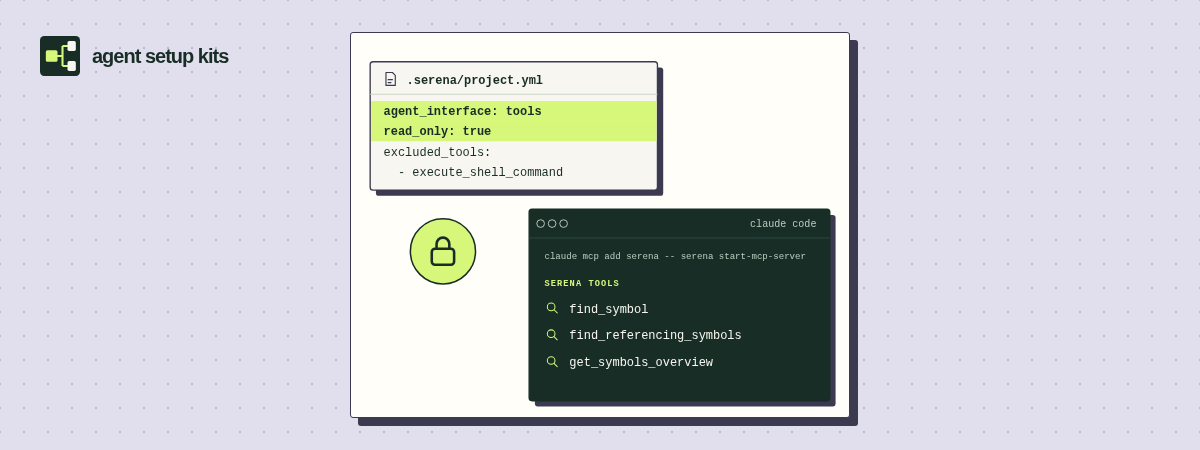
To try Serena safely, run it in read-only mode on the classic tools interface, not the default REPL interface. In Serena v2 the default is a REPL where, per its own security docs, the read_only setting refuses Serena's editing operations but does not stop the submitted code from modifying files.
Serena is an MCP server that gives a coding agent IDE-like tools: find a symbol, find its references, get a file's symbol overview, rename, and edit at the symbol level. This guide sets it up so the agent can look but not touch, then connects it to Claude Code.
Based on Serena, by Oraios AI and contributors. The Serena application is licensed GPL-3.0-or-later and its SolidLSP component MIT. We checked v2.1.0, released 19 October 2026. Settings can change between releases, so check yours.
Why read-only first
A new tool on a real repo is easiest to judge when it can't change anything. Serena's symbol tools are useful on their own for reading: find_symbol, find_referencing_symbols and get_symbols_overview let an agent explore code by structure instead of grepping text. Once you trust what it finds, you can turn editing back on.
Serena's own security page is frank about its model. It assumes the local machine, the MCP client and the repository are trusted, and says "the only way to fully protect against unintended consequences is to use a sandboxed environment." Read-only mode is a risk reducer, not a sandbox.
The trap: REPL vs tools interface
Serena v2 offers two interfaces to the agent:
- tools: the classic interface, where every operation is a separate MCP tool.
- REPL: new in v2, a single tool that executes Python code calling Serena's operations.
In the v2.1.0 global config template, the default is agent_interface: REPL.
The security page explains what that means for restrictions. With the tools interface, "excluding a tool removes the respective capability", so forbidding shell execution or file modification is effective. With the REPL interface, restrictions only steer the agent, and "the read_only project setting is subject to the same limitation: Serena's own editing operations are refused, yet code executed in the REPL is not prevented from modifying files."
So for a read-only trial, choose the tools interface.
Step 1: Install Serena
Serena is managed by uv, which the README calls "the only required prerequisite". Install it from the terminal:
uv tool install -p 3.13 serena-agent
serena init
The README warns: "Do not install Serena via an MCP or plugin marketplace!", because those listings contain outdated install commands. serena init sets up the language server backend by default.
Step 2: Make the project read-only
Serena keeps per-project settings in .serena/project.yml. The v2.1.0 project template includes the settings you need:
# .serena/project.yml
agent_interface: tools
read_only: true
excluded_tools:
  - execute_shell_command
What each line does, per the template's comments:
agent_interface: toolsoverrides the global setting for this project. The template notes the interface is fixed at startup, so set it before you launch.read_only: truemeans "all editing tools will be disabled and attempts to use them will result in an error".excluded_toolsremoves tools by name.execute_shell_commandis Serena's shell tool; your client already has its own.
You can also keep large or sensitive folders out of view with ignored_paths, which uses .gitignore syntax. By default, Serena also ignores everything in the project's .gitignore.
Step 3: Connect it to Claude Code, for this project only
From Serena's client docs, run this in the project folder:
claude mcp add serena -- serena start-mcp-server --context claude-code --project "$(pwd)"The claude-code context disables Serena tools that would duplicate Claude Code's built-in ones. Because a project is given at startup and the context is single-project, the configuration docs say tools the project disables "will not be available at all". Check the connection with /mcp in Claude Code.
The client docs also offer an optional auto-approve hook that approves Serena tool calls whenever Claude Code is in a permissive permission mode, including destructive ones such as replace_symbol_body and rename_symbol. For a read-only trial, skip that hook and keep approving tool calls yourself.
Step 4: Know what trust settings do and don't do
Since v1.6.0, Serena has "trusted projects". A repository's own .serena/project.yml can ask for things like an activation_command, which runs a shell command whenever the project is activated. Those features only work for paths you list in trusted_project_path_patterns, and new configurations trust no project by default.
The security page is clear that this is "a functionality boundary, not a containment boundary." An untrusted project is still read and edited like any other once the agent is asked to do something. If you don't trust a repository, the docs' answer is sandboxing, such as running Serena in Docker, not the trust setting.
Step 5: Try it, then decide
Ask the agent a reading task: "Use Serena to find every caller of parse_config and summarize how each one handles errors." Then try an edit request and confirm it fails with an error. That's your proof the read-only setting holds.
When you want edits, remove read_only: true and keep approving each change in Claude Code. The human approval step stays the same as for any agent: read the diff, run the tests, and commit yourself.
The takeaway
Serena's read_only only means what it says on the tools interface. Set agent_interface: tools, read_only: true and exclude the shell tool in .serena/project.yml, connect it per project, skip auto-approve, and use a sandbox for anything you don't trust.
Next step
Pair Serena's read-only code tools with our read-only GitHub MCP setup for Claude Code, see another local MCP server in the Playwright MCP kit, or find an agent for the job.
Good setups, worth keeping. Request email updates on the home page, then confirm by email. No subscription starts until you confirm.