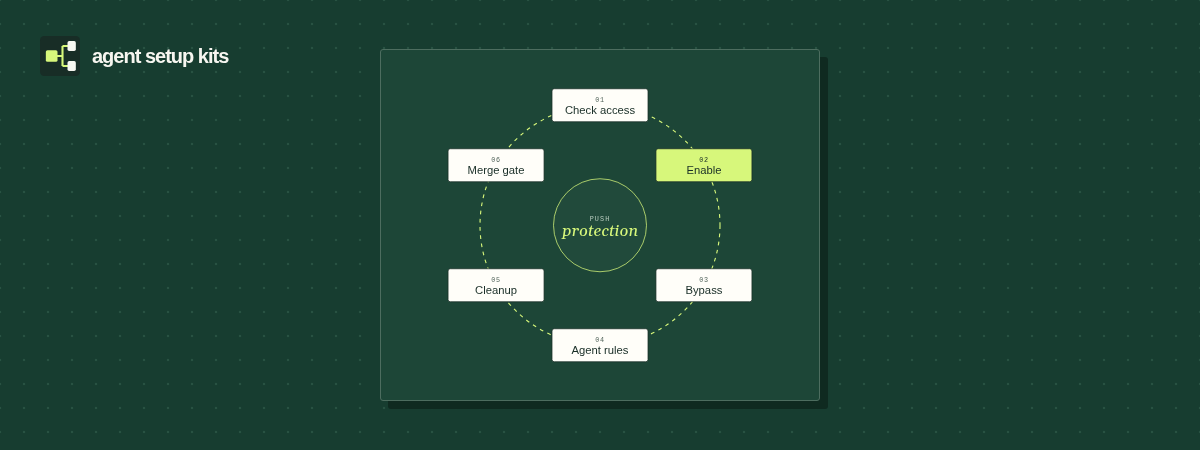
Turn on GitHub push protection for any repository an AI coding agent can push to, so a commit containing an API key, token or private key is rejected before it reaches GitHub. Then tell the agent that a blocked push means stop and ask you, never bypass.
Coding agents read config files, write test fixtures and commit quickly. That's one way a real key can end up hardcoded in a commit. Push protection catches it at the door instead of alerting you after the fact. This guide follows GitHub's secret scanning documentation, checked on 28 Oct 2026.
What push protection does
GitHub describes push protection as a secret scanning feature that "blocks pushes that contain secrets before they reach your repository" (About push protection). When it finds a likely secret, it blocks the push with a message explaining why, and you remove the secret and try again.
It can block four kinds of secrets:
- Partner patterns: provider-specific credentials from GitHub's partner program.
- Generic patterns: structured secrets such as private keys and database connection strings. These must be turned on in your security settings.
- Custom patterns: regular expressions you define for secrets unique to you.
- Secrets found with AI: unstructured secrets such as passwords (public preview, with separate billing terms).
Why it matters for agents: the surfaces
Agents don't only push from a terminal. GitHub's table of supported push surfaces covers command-line pushes, commits in the GitHub UI, file uploads, REST API requests and "Interactions with the GitHub MCP server (public repositories only)." Partner, generic and custom patterns are supported on all five. AI-detected secrets are not supported on REST API requests or GitHub MCP server interactions.
So if your agent writes files through the GitHub MCP server on a public repository, push protection still applies. On a private repository, don't count on that surface.
The two kinds of push protection
Push protection for users is on by default on GitHub.com. It stops you from pushing supported secrets to public repositories, but it doesn't create alerts when you bypass it unless repository-level protection is also on (Push protection for users). Check it under your profile picture, then Settings, then Code security, under "Push protection for yourself."
Push protection for repositories is the one to turn on for agent work. Per GitHub, it requires GitHub Secret Protection, is off by default, blocks secrets from reaching that repository, and records bypasses as alerts.
Step 1: check that you can turn it on
From Enabling secret scanning for your repository:
- Public repositories: secret scanning runs automatically for free.
- Organization-owned private and internal repositories: available with GitHub Secret Protection on GitHub Team or GitHub Enterprise Cloud.
- Other user-owned repositories: only on GitHub Enterprise Cloud with Enterprise Managed Users, or on GitHub Enterprise Server with Secret Protection.
Step 2: enable push protection
From Enabling push protection for your repository. You need to be the repository owner, an organization owner, a security manager or an admin.
- Open the repository and click Settings.
- In the "Security and quality" section of the sidebar, click Advanced Security.
- If Secret Protection isn't on yet, click Enable next to "Secret Protection."
- In the "Secret Protection" section, click Enable next to "Push protection."
Step 3: decide who can bypass
By default, GitHub says, "anyone with write access to the repository can bypass push protection by specifying a bypass reason." If your agent works under an account with write access, that rule covers it too. Each bypass creates an alert, lands in the audit log and emails owners, security managers and admins who watch the repository.
The three bypass reasons behave differently:
| Reason | What GitHub does |
|---|---|
| It's used in tests | Creates a closed alert, resolved as "used in tests" |
| It's a false positive | Creates a closed alert, resolved as "false positive" |
| I'll fix it later | Creates an open alert |
For tighter control, GitHub offers delegated bypass: you choose who can bypass and approve bypass requests, and who is exempt. Don't give that role to an agent.
Step 4: write the rule into your agent instructions
Add a line like this to your AGENTS.md or the agent's system instructions:
If a git push is blocked by GitHub push protection, stop. Do not
choose a bypass reason. Report the file and line to the user and
wait for instructions.
GitHub's bypass flow needs a URL from the blocked push, opened by the same user who pushed. Anyone else gets a 404. That's a human step, and it should stay one.
When a push is blocked: the cleanup
From Working with push protection from the command line, you have to remove the secret from every commit it appears in:
- Only in the latest commit: remove the secret, run
git commit --amend --all, thengit push. - In earlier commits: the error lists every commit containing the secret. Find the earliest one with
git log, rungit rebase -i <COMMIT-ID>~1, changepicktoediton that commit, remove the secret, rungit add .andgit commit --amend, thengit rebase --continueandgit push.
If the secret was real and the agent saw it, treat it as exposed and rotate it with the provider.
Add a merge gate too
Pair push protection with a ruleset. GitHub's available rules include Require secret scanning alerts are resolved (public preview). It blocks a pull request from merging if a scan hasn't finished for the head commit, or if a commit in the PR introduced an open alert for a secret type you selected.
The takeaway
An agent can commit a secret by accident. Push protection turns that into a rejected push instead of a leaked key. Enable it at the repository level, keep bypass away from agents, and tell your agent that a block means stop and ask.
Next step: pair this with a read-only GitHub MCP setup for Claude Code, or find an agent for the job.
Sources and credits
All sources checked 28 Oct 2026.
- GitHub Docs, About push protection: https://docs.github.com/en/code-security/secret-scanning/introduction/about-push-protection
- GitHub Docs, Enabling push protection for your repository: https://docs.github.com/en/code-security/secret-scanning/enabling-secret-scanning-features/enabling-push-protection-for-your-repository
- GitHub Docs, Working with push protection from the command line: https://docs.github.com/en/code-security/secret-scanning/working-with-secret-scanning-and-push-protection/working-with-push-protection-from-the-command-line
- GitHub Docs, Push protection for users: https://docs.github.com/en/code-security/secret-scanning/working-with-secret-scanning-and-push-protection/push-protection-for-users
- GitHub Docs, Enabling secret scanning for your repository: https://docs.github.com/en/code-security/secret-scanning/enabling-secret-scanning-features/enabling-secret-scanning-for-your-repository
- GitHub Docs, Available rules for rulesets: https://docs.github.com/en/repositories/configuring-branches-and-merges-in-your-repository/managing-rulesets/available-rules-for-rulesets
This guide is independent and not affiliated with or endorsed by GitHub. Found something out of date? Tell us through submit. How this site checks claims is on verification.
Good setups, worth keeping. Request email updates on the home page, then confirm by email. No subscription starts until you confirm.
Part of: How do I keep secrets out of agents?