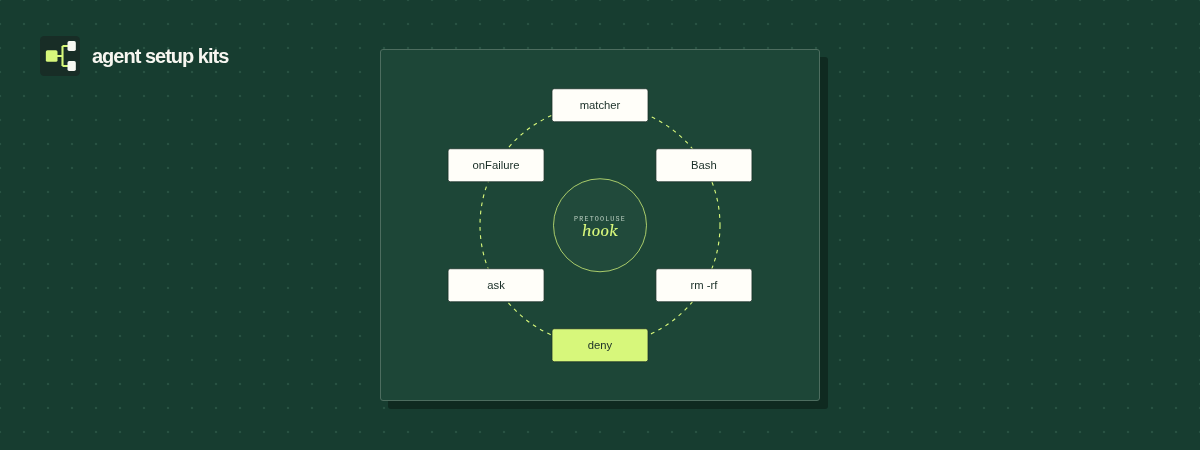
To stop Claude Code from running a command you never want run, add a PreToolUse hook: a script that reads each tool call before it executes and blocks it by exiting with code 2 or returning "permissionDecision": "deny". Then set "onFailure": "block" so that a missing or crashing guard script blocks the call instead of quietly letting it through.
This guide walks through the parts of Anthropic's Claude Code hooks reference that matter when a hook is acting as a safety gate rather than a convenience.
What a hook is
The reference defines hooks as "user-defined shell commands, HTTP endpoints, MCP tool calls, LLM prompts, or subagents that execute automatically at specific points in Claude Code's lifecycle." Claude Code fires the same hook events in the terminal, IDE extensions, the Desktop app and cloud sessions.
For a guardrail, one event matters most:
PreToolUsefires before a tool call executes and can block it.PostToolUsefires after a tool call succeeds. It can't block anything, because the tool already ran, but it can show a warning to Claude.
Every hook has three layers: the event (like PreToolUse), a matcher group that filters which calls activate it (like only the Bash tool) and one or more handlers that run.
Where to put it
Where you define a hook sets its scope. The reference lists these locations, among others:
| File | Scope | Shareable |
|---|---|---|
~/.claude/settings.json | All your projects | No, local to your machine |
.claude/settings.json | One project | Yes, can be committed to the repo |
.claude/settings.local.json | One project | No, gitignored when Claude Code saves a setting to it |
| Managed policy settings | Organization-wide | Yes, admin-controlled |
For a team guardrail, commit it to .claude/settings.json so everyone working in the repo gets the same check. Note that cloud sessions don't read your local ~/.claude/settings.json, so a personal guard there won't follow you into a cloud session.
Hooks from settings files also run inside subagents, so a subagent's tool calls hit the same PreToolUse check as the main conversation.
A minimal blocking hook
The reference's own example narrows a hook to Bash calls that look like rm:
{
  "hooks": {
    "PreToolUse": [
      {
        "matcher": "Bash",
        "hooks": [
          {
            "type": "command",
            "if": "Bash(rm *)",
            "command": "${CLAUDE_PROJECT_DIR}/.claude/hooks/block-rm.sh",
            "onFailure": "block"
          }
        ]
      }
    ]
  }
}
The matcher limits the group to the Bash tool. The optional if field narrows further, so the script only spawns for subcommands that match rm *. We've added onFailure, explained below.
The script receives the tool call as JSON on stdin, including tool_name and tool_input.command. The reference's version uses jq to pull out the command and prints a deny decision if it contains rm -rf:
#!/bin/bash
COMMAND=$(jq -r '.tool_input.command')
if echo "$COMMAND" | grep -q 'rm -rf'; then
  jq -n '{hookSpecificOutput: {hookEventName: "PreToolUse",
    permissionDecision: "deny",
    permissionDecisionReason: "Destructive command blocked by hook"}}'
else
  exit 0
fi
Make it executable with chmod +x. When it denies a call, Claude Code blocks the tool call and shows Claude the reason.
One editorial caution: a plain string match like this is easy to miss. The script above only looks for the exact text rm -rf, so rm -fr would not match. Treat pattern hooks as a backstop and write the check to fit your own risks.
The two ways to say no
Exit code 2. The reference calls exit 2 "the way a hook signals 'stop, don't do this.'" On PreToolUse it blocks the tool call, and your script's stderr becomes the message Claude sees. Exit 2 wins even if your script also prints JSON. A permissionDecision of "allow" can't override it.
A JSON decision. Exit 0 and print one JSON object with hookSpecificOutput.permissionDecision set to one of four values:
"allow"skips the permission prompt, with exceptions listed in the reference."deny"prevents the tool call."ask"prompts the user to confirm."defer"ends the turn so the tool can be resumed later. It requires non-interactive mode with the-pflag.
For a human-in-the-loop setup, "ask" is the useful middle ground. The hook doesn't have to decide; it can send risky calls back to you. The reference also notes that your deny and ask permission rules are still evaluated regardless of what a hook returns.
Pick one approach per hook. The reference says to use either exit codes alone or exit 0 with JSON.
The traps that make a guard fail open
These are the details that turn a guardrail into a false sense of safety.
Exit 1 does not block. Exit 1 is the usual Unix failure code, but in Claude Code it's a non-blocking error. The reference is direct: "If your hook is meant to enforce a policy, use exit 2."
Silence is not approval, but it isn't a block either. Exit 0 with no output means the hook has no decision, so the call continues through the normal permission flow.
A broken path means no guard. If the script doesn't exist or isn't executable, the hook can't start, which is also non-blocking by default. The reference warns that "a mistyped path in settings.json means the hook never runs."
Timeouts let the call through. On PreToolUse, a command, HTTP or MCP tool hook that times out doesn't block the call, so the reference says "don't count on a stalled hook to act as a gate." The default timeout for command hooks is 600 seconds.
The fix for all three is "onFailure": "block". On a command or HTTP hook, it makes failures to start, exit codes other than 0 or 2, invalid output and timeouts block the action, just as exit 2 does. It requires Claude Code v2.1.295 or later. To test it, follow the reference's suggestion: point the hook at a missing script and ask Claude to run ls. With onFailure set, the call is blocked.
Hooks can be switched off. "disableAllHooks": true in a settings file turns off every hook, and a project's .claude/settings.json setting overrides your user settings. When you review a repo's .claude/ folder, check for this as well as for the hooks themselves.
A short checklist
- Put shared guards in
.claude/settings.jsonand review changes to that file like code. - Narrow the trigger with
matcherandifso the hook only spawns when needed. - Block with exit 2 or a
denydecision, never exit 1. - Use
"ask"for "probably fine, but I want to see it" calls. - Add
"onFailure": "block"to every guard hook. - Test the failure case on purpose with a missing script.
- Keep permission rules and sandboxing in place. A hook is one layer, not the whole defense. If Claude also runs in CI, as in our Claude pull request review kit, harden the workflow too.
The takeaway
A Claude Code hook can stop a tool call before it runs, but only if it fails closed. Block with exit 2 or deny, send borderline calls to ask, set onFailure to "block" and prove it works by breaking it once.
Next step: add a guard hook before you connect Claude Code to your repositories with our read-only GitHub MCP setup for Claude Code, or find an agent for the job.
Sources and credits
All sources checked 28 Oct 2026.
- Claude Code Docs, Hooks reference: https://code.claude.com/docs/en/hooks
- Agent Setup Kits, Add the GitHub MCP Server to Claude Code, Read-Only: https://agentsetupkits.com/kits/github-mcp-claude-code/
- Agent Setup Kits, Automated Pull Request Reviews With Claude Code Action: https://agentsetupkits.com/kits/claude-pr-review/
This guide is independent and not affiliated with or endorsed by Anthropic. Found something out of date? Tell us through submit. How this site checks claims is on verification.
Good setups, worth keeping. Request email updates on the home page, then confirm by email. No subscription starts until you confirm.