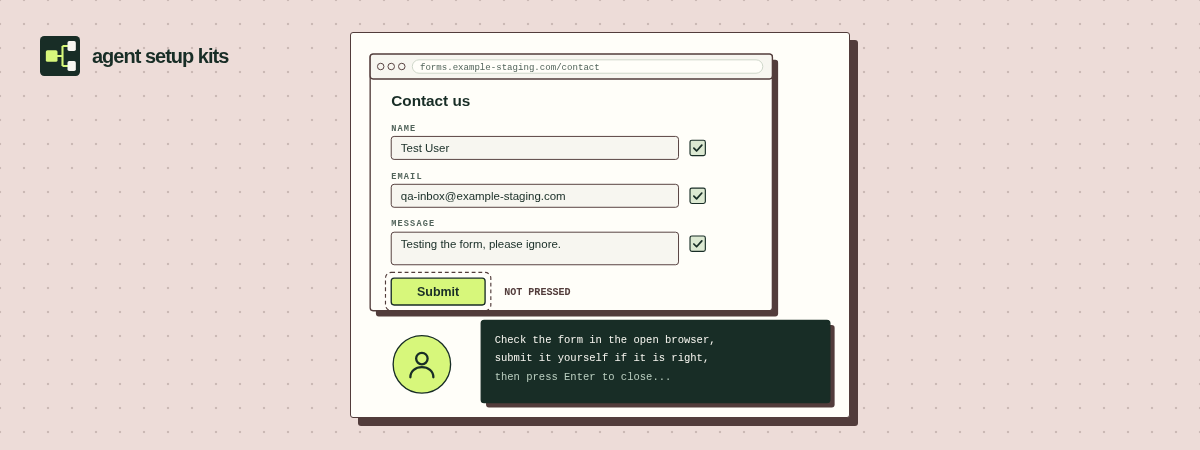
Browser Use is an MIT-licensed Python library that lets an AI model drive a real browser. To use it safely on forms, lock it to one test domain, keep secrets out of the model's view, tell it to stop before submitting, and leave the browser open so you check the form and press Submit yourself.
The agent does the clicking and typing. You make the one decision that sends something.
What Browser Use is (checked on v0.13.14)
Browser Use (GitHub) runs an agent loop: a model looks at the page, picks actions such as clicking or typing, and the library carries them out in a browser. The repository is MIT-licensed, and as of 2026-10-28 the latest release is 0.13.14.
The Python library is free to use. You still pay your model provider for each run, and the project also offers paid cloud services (a hosted browser and its own model) that this guide does not need.
Based on Browser Use, by the browser-use team and contributors.
Why "stop before submit" matters
A browser agent can do anything you can do in that browser: post, buy, delete, send. The project's own docs are direct about trust: for open-source runs, is_successful is "the agent-reported outcome; verify important external actions independently" (docs index).
So the safe pattern for any form that sends data is:
- The agent fills the form.
- The agent stops.
- A person reads what it filled and decides whether to submit.
One honest caveat first. "Do not click Submit" in the task is an instruction to the model, not a technical lock. Models can misread pages or ignore instructions. That is why the setup below also limits where the agent can go and what it can see, and why you should practise on a test site before pointing it at anything real.
Step 1: Install it in a fresh project
From the README (Path 3: Python Library), Browser Use needs Python 3.11 or newer:
uv init --python 3.12
uv add browser-use
Add your model key to a .env file in the project. Keep .env out of git and never paste the key into the task text:
# .env
OPENAI_API_KEY=your-key
Step 2: Write the agent with guardrails
Save this as agent.py. Replace the staging address with a test copy of the form you want to fill:
import asyncio
import os

os.environ.setdefault('ANONYMIZED_TELEMETRY', 'false')

from browser_use import Agent, Browser, ChatOpenAI
from dotenv import load_dotenv

load_dotenv()

TASK = """
Go to https://forms.example-staging.com/contact.
Fill in the contact form using these details:
name: Test User, email: test_email, message: "Testing the form, please ignore."
Do NOT click Submit, Send, or any button that sends the form.
When every field is filled, stop and report which fields you filled.
"""

async def main():
    browser = Browser(
        headless=False,
        keep_alive=True,
        allowed_domains=['forms.example-staging.com'],
    )
    agent = Agent(
        task=TASK,
        llm=ChatOpenAI(model='gpt-5.6-luna'),
        browser=browser,
        sensitive_data={'test_email': 'qa-inbox@example-staging.com'},
        use_vision=False,
    )
    history = await agent.run(max_steps=25)
    print(history.final_result())
    input('Check the form in the open browser, submit it yourself if it is right, then press Enter to close... ')
    await browser.kill()

if __name__ == '__main__':
    asyncio.run(main())
The model name is the one used in the README's quickstart. Any model the library supports works the same way.
Run it with uv run agent.py.
What each guardrail does
allowed_domains restricts navigation to the domains you list (browser parameters). Navigation to any other site is blocked, so a stray link can't take the agent somewhere else. There is also prohibited_domains for a block list. If you set both, allowed_domains wins.
headless=False shows the browser window, so you can watch what the agent does.
keep_alive=True keeps the browser running after the agent finishes. Combined with the input() line, the filled form stays on screen until you've checked it.
sensitive_data keeps real values away from the model. In the task, the model only sees the placeholder name test_email. The library swaps in the real value when it types into the field (sensitive data docs). You can also scope secrets to specific domains.
use_vision=False stops screenshots being sent to the model. The sensitive data docs recommend it so the model can't read a secret off a screenshot. The trade-off: on pages that are hard to read as text, the agent may do worse.
max_steps=25 caps the run. In 0.13.14 the default for agent.run() is 500 steps, which is a lot of model calls if the agent gets stuck.
ANONYMIZED_TELEMETRY=false turns off the library's anonymous usage telemetry, which is on by default. In 0.13.14 this also switches off cloud sync by default unless you set BROWSER_USE_CLOUD_SYNC yourself.
All of these parameters were confirmed in the installed 0.13.14 package on 2026-10-28.
Step 3: The human approval step
When the run ends, the terminal prints the agent's report and waits. This is your approval step:
- Read every field in the open browser, not just the agent's summary. The summary is what the agent believes it did.
- Check that nothing was submitted already. Look at the page, and at the test inbox or test database behind the form.
- If it's right, press Submit yourself. If it isn't, close it and adjust the task.
- Press Enter in the terminal to close the browser.
Keep this person-presses-Submit step even after many clean runs. It's the step that stops a wrong order, message or record from going out.
Practise on test accounts first
Before you let the agent near a real form:
- Use a staging site or a form you own. Point the email field at a test inbox so you can see if anything was sent.
- Use test logins. If the agent must sign in, the sensitive data docs suggest
storage_statewith saved login cookies instead of passwords where you can. Never use your main personal or admin account. - Run it several times. Agents don't behave identically every run. Look for any run where it clicked Submit anyway. If that happens, don't move on to real forms.
- Keep the domain list tight. Add only the domains the form really needs.
When you outgrow this
If you mostly need a coding agent to check pages while you build, a browser connected through MCP may fit better. See our Playwright MCP kit.
For any agent that can act on the web, our verification page explains how we check kits before we list them.
Takeaway
Browser Use can fill forms well, but "don't submit" in a prompt is a request, not a guarantee. Lock the agent to a test domain, hide secrets with sensitive_data, cap the steps, keep the browser open, and make Submit a button a person presses.
Next step: run the script above against a form you own, with a test inbox, five times, and check that the agent stopped every time.
Good setups, worth keeping. Request email updates on the home page, then confirm by email. No subscription starts until you confirm. Or find an agent for the job.